



How to Use VIM and Not Die Trying
_author: TatoNaranjo
Index
- What is VIM?
- Why use VIM?
- First Steps with VIM
- Basic Navigation
- Text Editing
- Search and Replace
- Working with Files
- Customizing VIM
- Essential Keyboard Shortcuts
- Advanced Techniques
- Tips to Increase Productivity
- Conclusion
What is VIM?
I remember once, while watching a Screen Cast of a competitive programmer, I realized that at no point did he use his mouse to write code, and all he did was resort to commands to change occurrences in his code in a matter of seconds. Next, I discovered the best text editor I’ve ever tried.
VIM (Vi Improved) is a free and Open-Source text editor, which emerged as a clone of a previous editor called Vi. In 2015, the Stack Overflow platform indicated through a survey that Vim had positioned itself as the third most popular text editor in the world, and in 2018 it was one of the most popular editors on the Linux Journal website.
VIM is a mode-based text editor, which means it uses different modes to perform different operations such as inserting text, navigating, or executing commands. Unlike other text editors, VIM does not rely on menus or mouse clicks, but on quick commands that the user can type directly, allowing for faster and more efficient editing. Released in 1991 by Bram Moolenaar, VIM is an improvement on VI, a text editor for Unix systems.
VIM’s minimalist approach makes it extremely fast and lightweight, ideal for environments where resources are limited or efficiency is paramount. It is widely used by developers, system administrators, and anyone who works with large amounts of text. VIM is available on almost all operating systems, from Linux and macOS to Windows, and is known for its high level of customization.
I usually use it as my main text editor even over Visual Studio Code because of how fast it works and the keyboard shortcuts that help me avoid using the mouse (We will talk about that later).
Why Use VIM?
Learning to use VIM can significantly improve your work efficiency. As a keyboard-based editor, VIM allows you to perform editing tasks without taking your hands off the keyboard, saving time and reducing physical effort. Plus, with its powerful command system, you can perform complex editing actions that in other editors would require multiple steps or additional plugins.
Furthermore, VIM is present in almost all operating systems and development environments, making it a universal tool for any programmer or system administrator. Its near-infinite customization and extensive community support also make it ideal for those looking for a tool that perfectly suits their workflow. Learning VIM is not just learning a text editor, but mastering a tool that will accompany you in any development environment.
First Steps With VIM
To get started with VIM, you first need to install it. On most Linux distributions, VIM comes pre-installed. If not, you can easily install it using your system’s package manager, like apt-get install vim on Debian/Ubuntu or yum install vim on Red Hat/CentOS. On macOS, you can use Homebrew with brew install vim, and on Windows you can opt for versions like GVim that add a graphical interface.
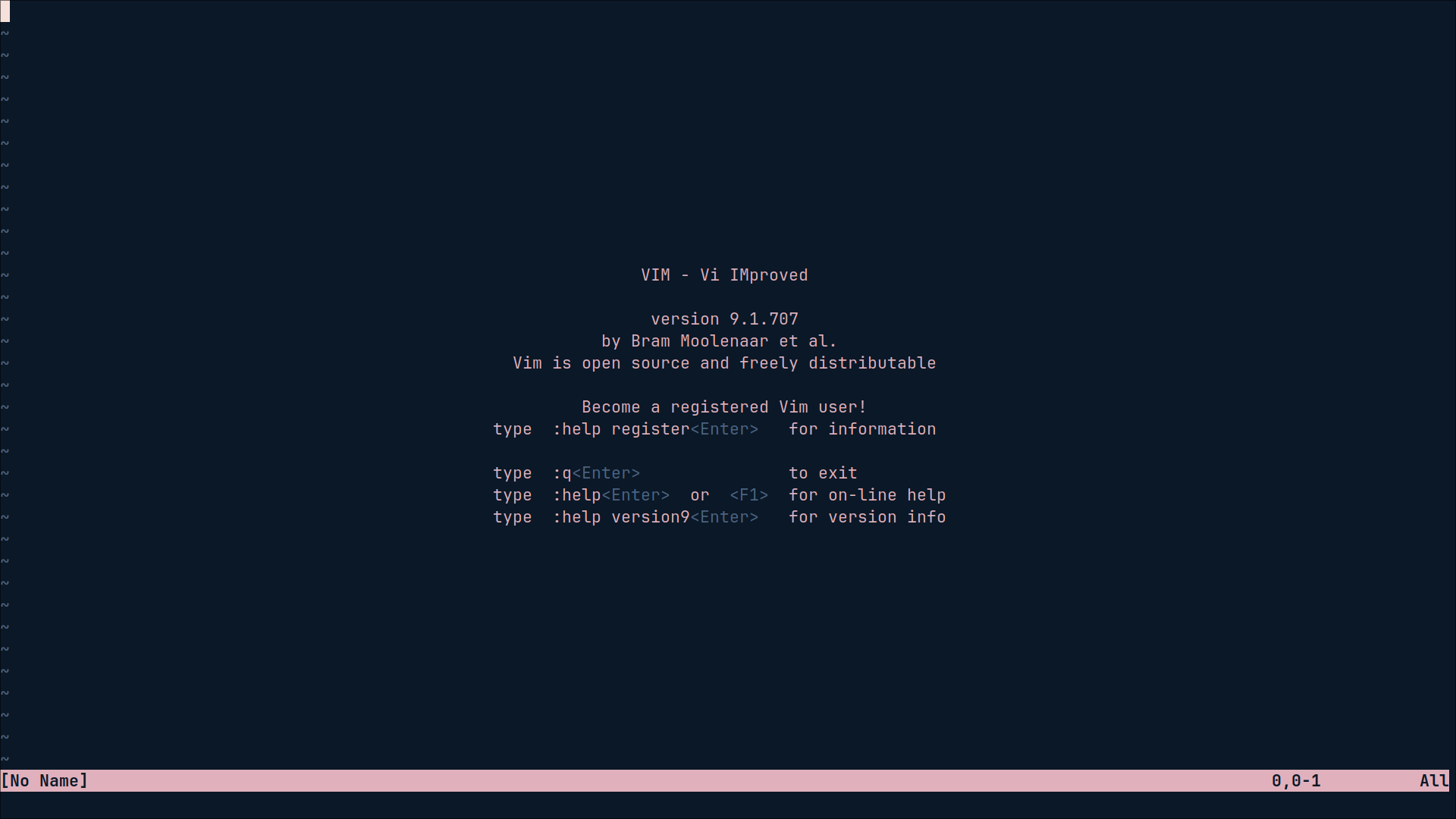
Once installed, it’s essential to understand the basic modes of VIM: Normal, Insert, and Command. Normal mode is where VIM starts by default, allowing cursor movements and command execution. Insert mode is where you can type and edit text, and is accessed by pressing i. Command mode, accessed with : from Normal mode, allows executing more advanced orders like saving files or searching text.
Basic Navigation
One of the key skills to be efficient in VIM is learning to navigate a document quickly. Unlike other editors that use the arrow keys, VIM uses the h, j, k, and l keys to move left, down, up, and right, respectively. This allows you to keep your hands on the home row of the keyboard, saving time. You can also use commands like gg to go to the beginning of the file or G to go to the end.
For more advanced navigation, you can jump between words using w to go to the beginning of the next word or b to go back to the beginning of the previous word. Using 0 positions you at the beginning of the line and $ at the end. These combinations allow you to move quickly and efficiently within the file without needing to switch to the mouse.
Text Editing
Editing text in VIM is quite intuitive once you understand the basic commands. To insert text, simply press i to enter insert mode, where you can start typing directly. To delete characters, use x to delete a character under the cursor or dw to delete a word. You can delete entire lines with dd and restore them with u if you make a mistake.
Copying, cutting, and pasting text in VIM is done using the commands y (yank) to copy and p to paste. To cut text, use d combined with the desired movement, for example, dd to cut a line or d$ to cut to the end of the line. These commands may seem strange at first, but they allow extremely fast and precise editing once you get used to them.
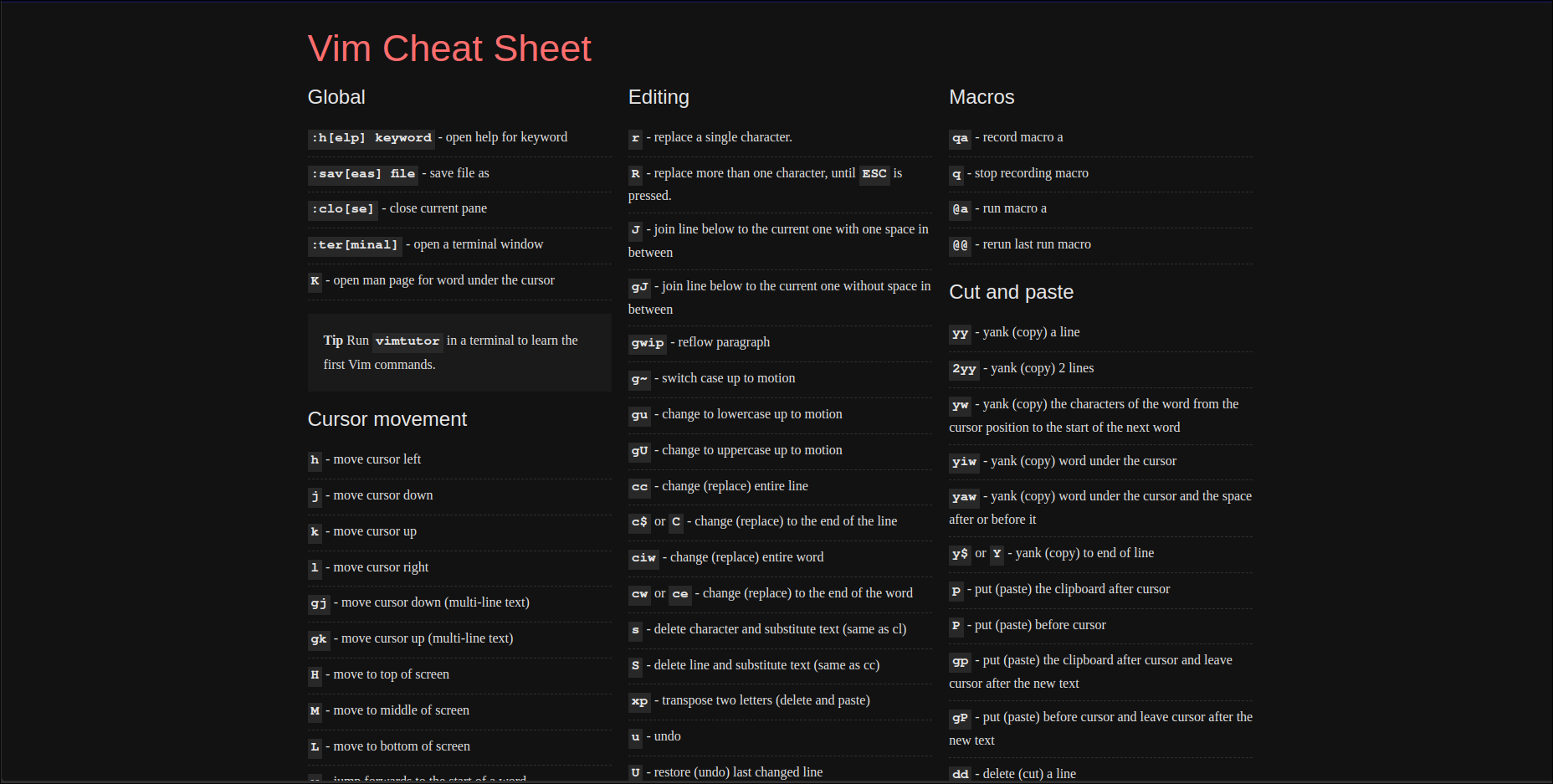
The key to learning navigation commands is to look at them and use them until it becomes normal for you. For this I recommend reviewing the VIM Shortcut Page
Search and Replace
Searching for text in VIM is an essential skill for working with large or complex files. To search for a word or phrase, simply enter Command mode by pressing : and use /word to search forward or ?word to search backward. Navigating between search results is done with n for next and N for previous.
Replacing text is also simple with VIM. Use the :s command to substitute text on the current line, like :s/old/new/, or add the g suffix to perform the substitution across the entire line. To perform a global replacement throughout the document, use :%s/old/new/g. With these tools, you can quickly find and replace text without needing to open a dialog box or additional menu.
Working With Files
Opening and saving files in VIM is direct and efficient. To open a file, you can use vim filename from the terminal, or from within VIM you can use :e filename to open a specific file. To save changes made to the current file, simply type :w. If you want to exit VIM, use :q, and if you need to save and exit at the same time, use :wq.
When working with multiple files, you can use the :n command to navigate to the next file or :prev to go to the previous one. You can also open multiple files at the same time using :e filename. Using buffers and tabs also makes editing multiple documents simultaneously easier, improving your workflow.
Customizing VIM
.vimrc
Customizing VIM starts with the .vimrc file, where you can define custom settings that are loaded every time you start VIM. Here, you can set options like tab size, line numbers, color scheme, and more. For example, adding set number to .vimrc will show line numbers in every file you open.
Plugins
Plugins are another excellent way to extend VIM’s functionality. For beginners, some recommended plugins include ‘nerdtree’ for file navigation, ‘vim-airline’ for a more attractive status bar, and ‘fugitive’ for Git integration. Using a plugin manager like vim-plug or Vundle makes installing and updating plugins easier.
Essential Keyboard Shortcuts
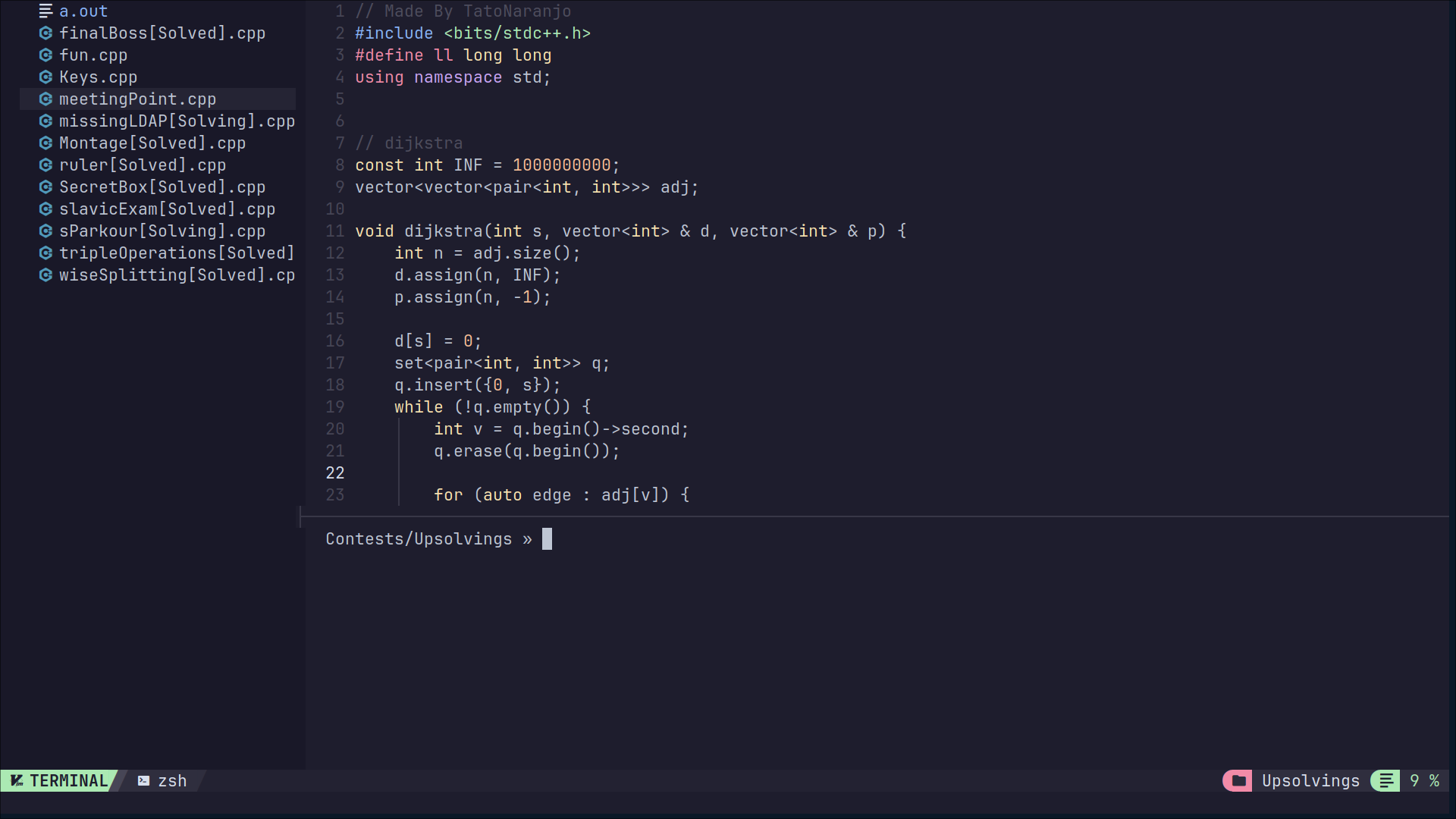
Knowing the most used keyboard shortcuts in VIM is essential to be efficient. Commands like :w to save, :q to exit, dd to delete a line, or yy to copy a line are daily essentials. You can also use combinations like ciw to change a word or yyp to duplicate a line.
Once you feel comfortable with the default commands, you can create your own keyboard shortcuts to further customize your experience. For example, you can map Ctrl + s to quickly save the file by adding map <C-s> :w<CR> to your .vimrc file. This allows the editor to fit your workflow.
Advanced Techniques
Macros are an advanced tool in VIM that allows you to record and play back command sequences, saving time on repetitive tasks. To record a macro, press q followed by a letter (like a), perform the actions you want to record, and press q again to stop recording. Then, you can play back the macro with @a.
Registers are storage areas in VIM where text you copy or cut is saved. You can access different registers using " followed by the register letter, like "ayy to copy a line into register “a”. Marks (m) allow you to save specific positions in the file to quickly return to them, using letters to name the marks, like ma to mark the current position as ‘a’.
Tips To Increase Productivity
Regular practice is fundamental to master VIM. Try using VIM as your main editor for editing all kinds of text, from code to documents, to familiarize yourself with its commands. The more you use it, the faster and more comfortable you will feel. Additionally, keeping a list of commands you want to learn or practice can help you focus on specific skills.
In addition to practice, take advantage of the numerous resources available to learn VIM, such as online tutorials, books, and courses. You can start with VIM’s internal tutorial (vimtutor in the terminal) to learn basic commands. Then, expand your knowledge by exploring advanced resources like “Practical Vim” by Drew Neil or YouTube tutorials.
Conclusion
Mastering VIM may seem challenging at first, but the benefits are invaluable. Once you understand its commands and workflows, you will find it is one of the fastest and most powerful editing tools available. From more efficient text editing to deep customization, you must believe me when I tell you that VIM can revolutionize your daily workflow.
As next steps, I encourage you to keep exploring VIM’s capabilities. Experiment with new settings, explore useful plugins, and dive into the documentation to make the most of this incredible tool. Remember, the more you practice, the more natural your experience with this tool will be, and the more you will want to have it in your development environments!